How to run a live quiz game in class
Set up the game
- Sign in as a teacher with your school email, open a class at vertexacademy.co.nz/classes and press Live game. Under a lesson's title, Live game starts one with that lesson's quiz.
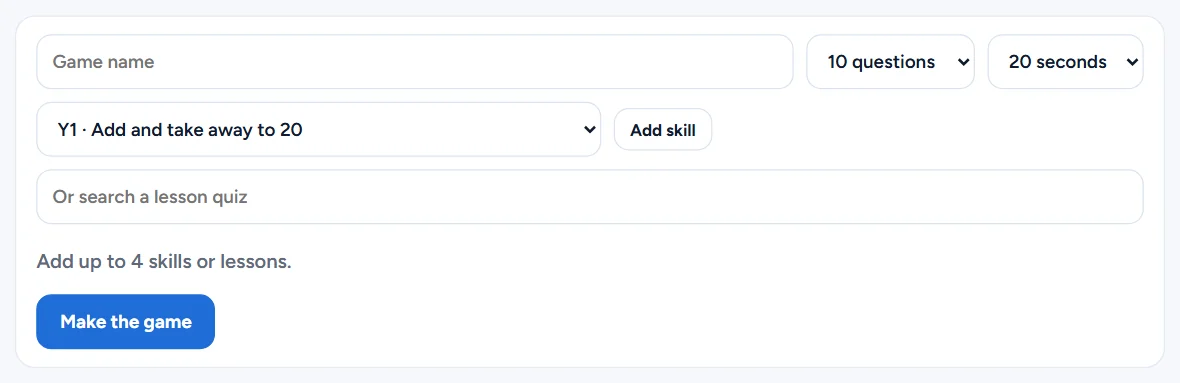
- Add up to four skills or lesson quizzes.
- Choose 5 to 20 questions and 10 to 60 seconds a question, and give the game a name.
- Press Make the game.
Students join
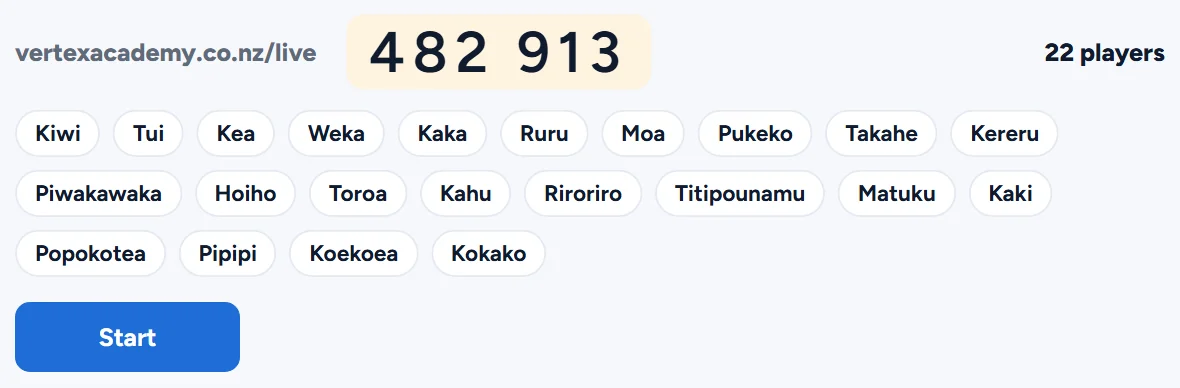
- Put your screen on the board. It shows the address and a 6-digit code.
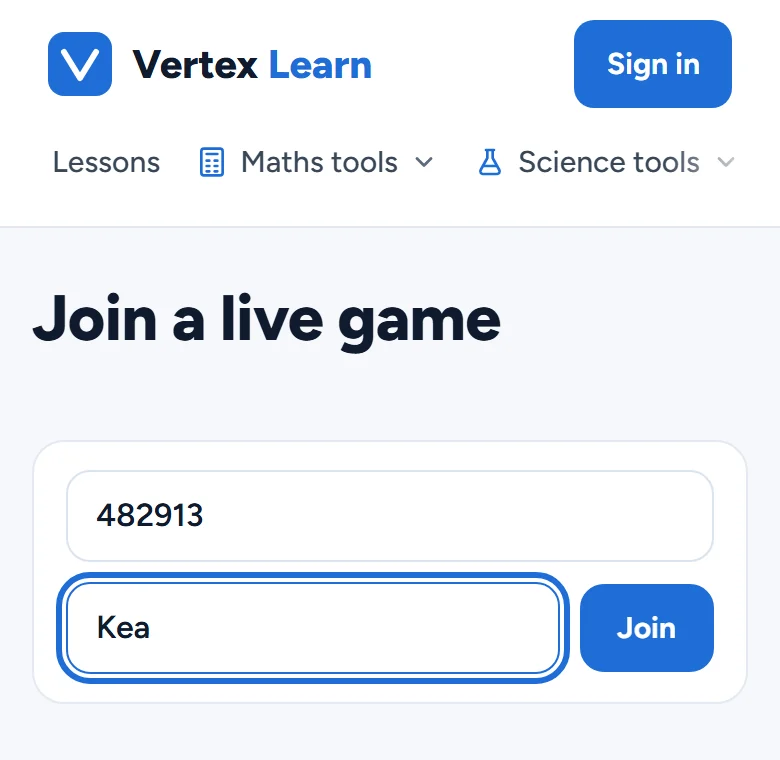
- Students open vertexacademy.co.nz/live on a phone or laptop and type the code and a nickname. They need no account or email.
- Names appear as students join. Tap a name to remove it.
- Press Start.
Play
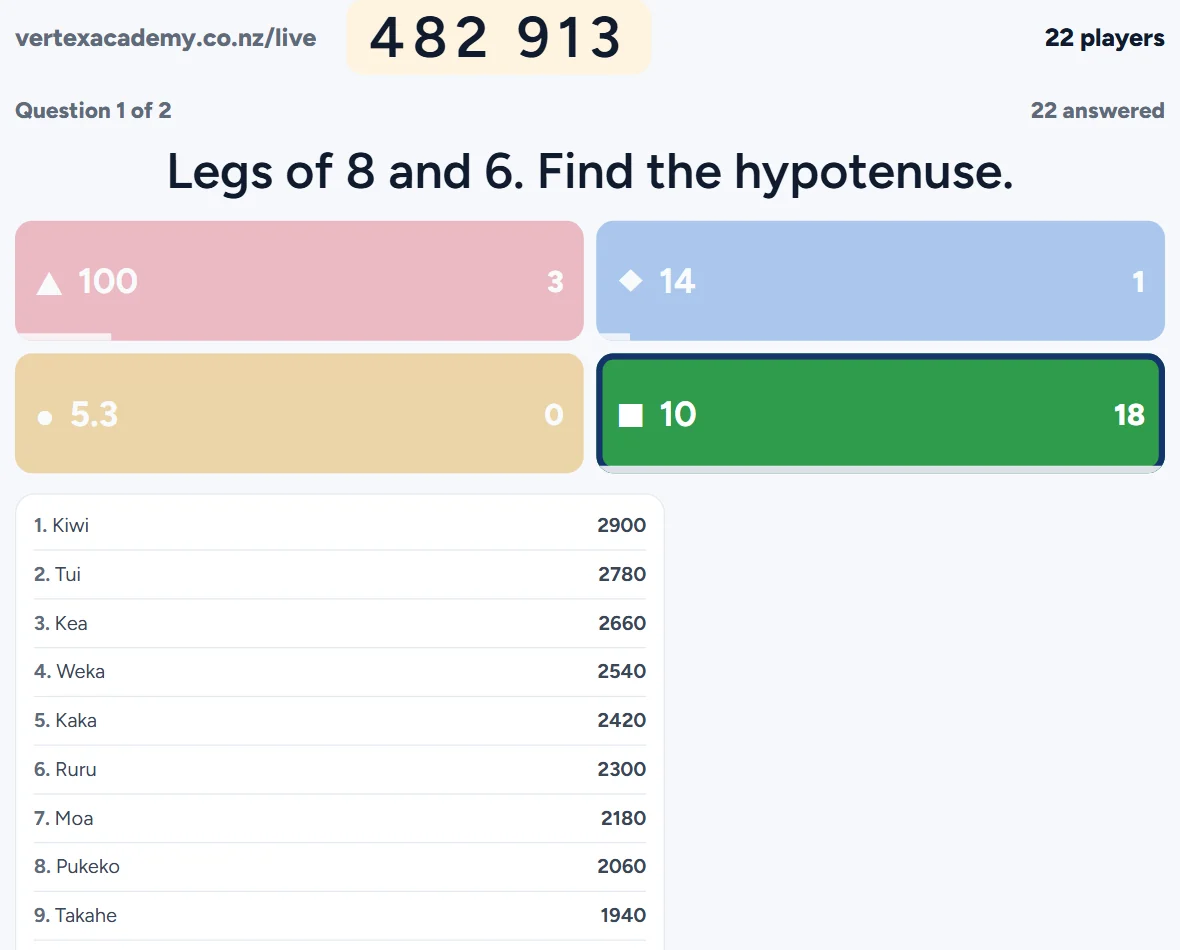
- Each question shows on the board with a countdown, and students pick their answer on their phones.
- The answer shows when time is up or everyone has answered. Press Show the answer to stop early.
- The board shows how many students picked each answer and the top 10. A right answer scores more the faster it comes.
- Press Next question, and at the end Final scores.
- If the page reloads, open Live game again and press Resume.