How to see which questions your class got wrong
Get your class answering
- Make a class at vertexacademy.co.nz/classes and bring your students in, from Google Classroom or with the class code.
- Students answer lesson quizzes while signed in. Their first pick on each question is what you see.
How to bring a Google Classroom class in: set a task in Google Classroom.
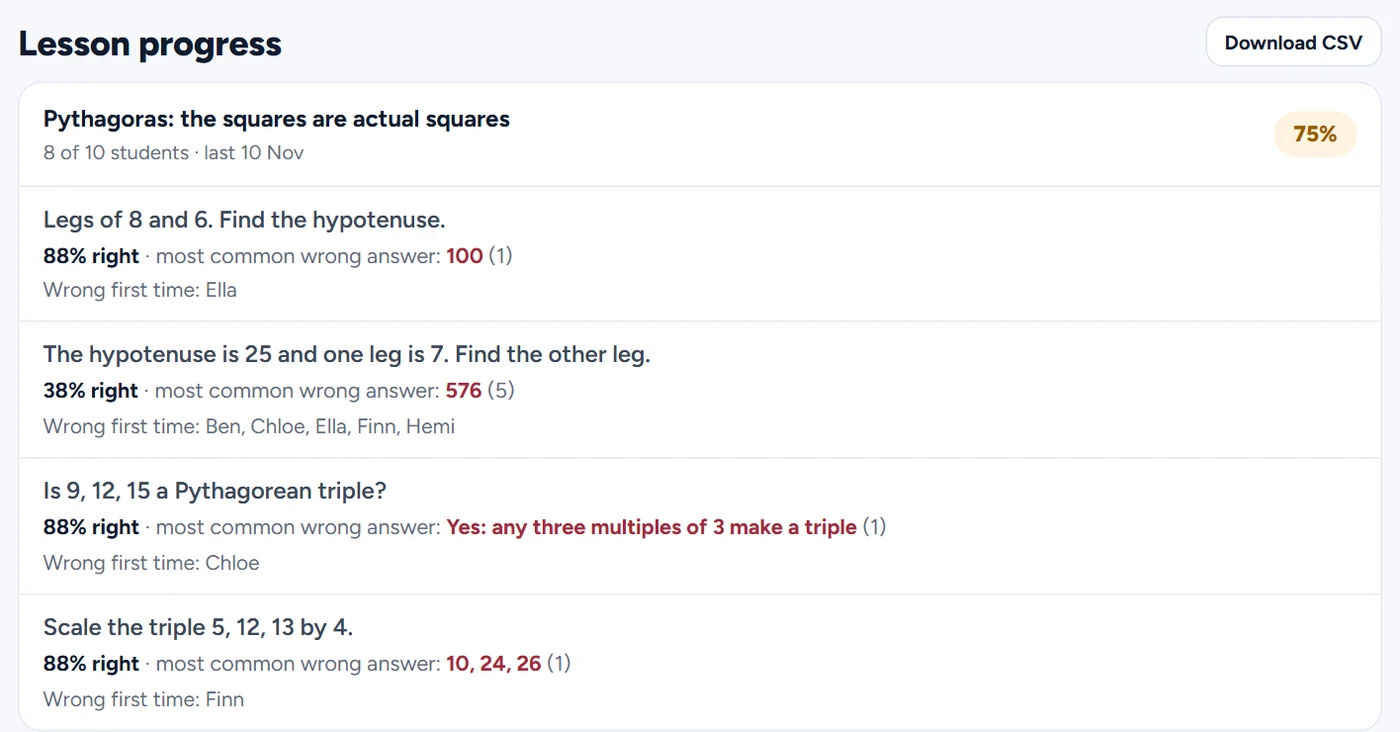
Lesson progress on the class page
- Open the class and scroll to Lesson progress.
- Each lesson your class tried shows how many students answered it and the share right first time.
- Open a lesson to see every question with the percentage right, the most common wrong answer and the students who got it wrong first time.
- Press Download CSV for a spreadsheet: one row per student and lesson.
On the lesson page
- Signed in as a teacher, open the lesson. If you teach more than one class, pick the class under the title.
- Each answer shows how many of your students picked it, and each question says how many got it right.
In a task report
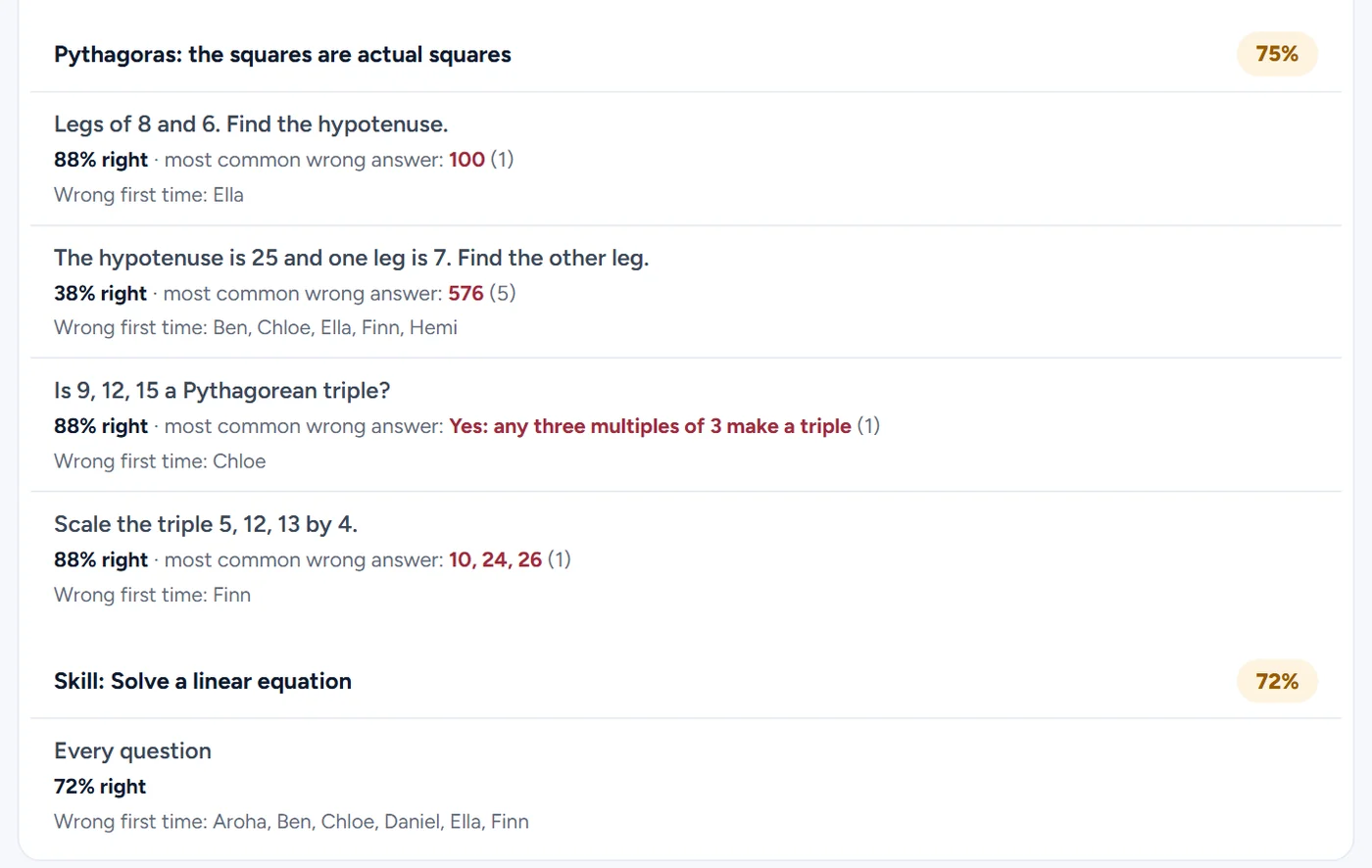
- Open the class, then the task.
- Under the student table, every question in the task has its percentage right, the most common wrong answer and who got it wrong first time. Skill questions differ for each student, so a skill has one row for all its questions.
- Press Check again to set the same task later. Its report adds a Before column, so you can see who improved.
The gradebook
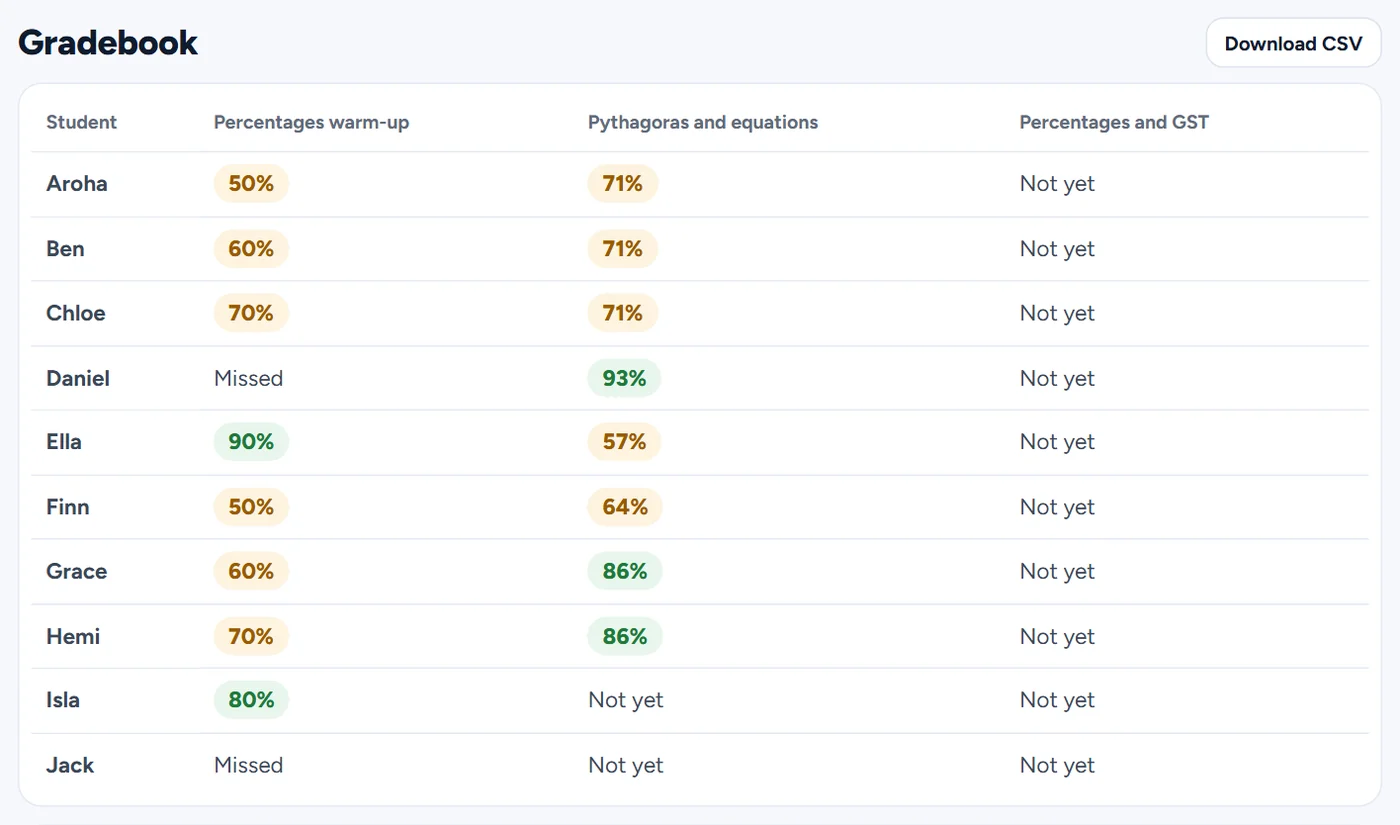
- Open the class and scroll to Gradebook.
- Each student has a row and each task a column, oldest first: the share right first time, Not yet, or Missed once the due day has passed.
- Press Download CSV for a spreadsheet.