How to share a lesson to Google Classroom
Share to Classroom
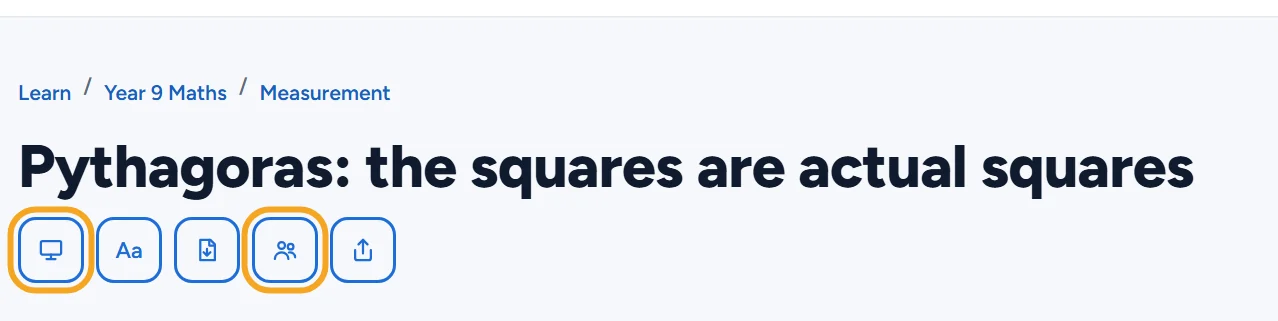
- Open a lesson from vertexacademy.co.nz/learn. Tool pages and practice papers have the button too.
- Under the title, press Share to Classroom (the people icon).
- In Google's window, pick your class and how to post it, for example as an assignment or material.
- Students open the lesson from Classroom. They can read it and use its tools without signing in.
Use in class
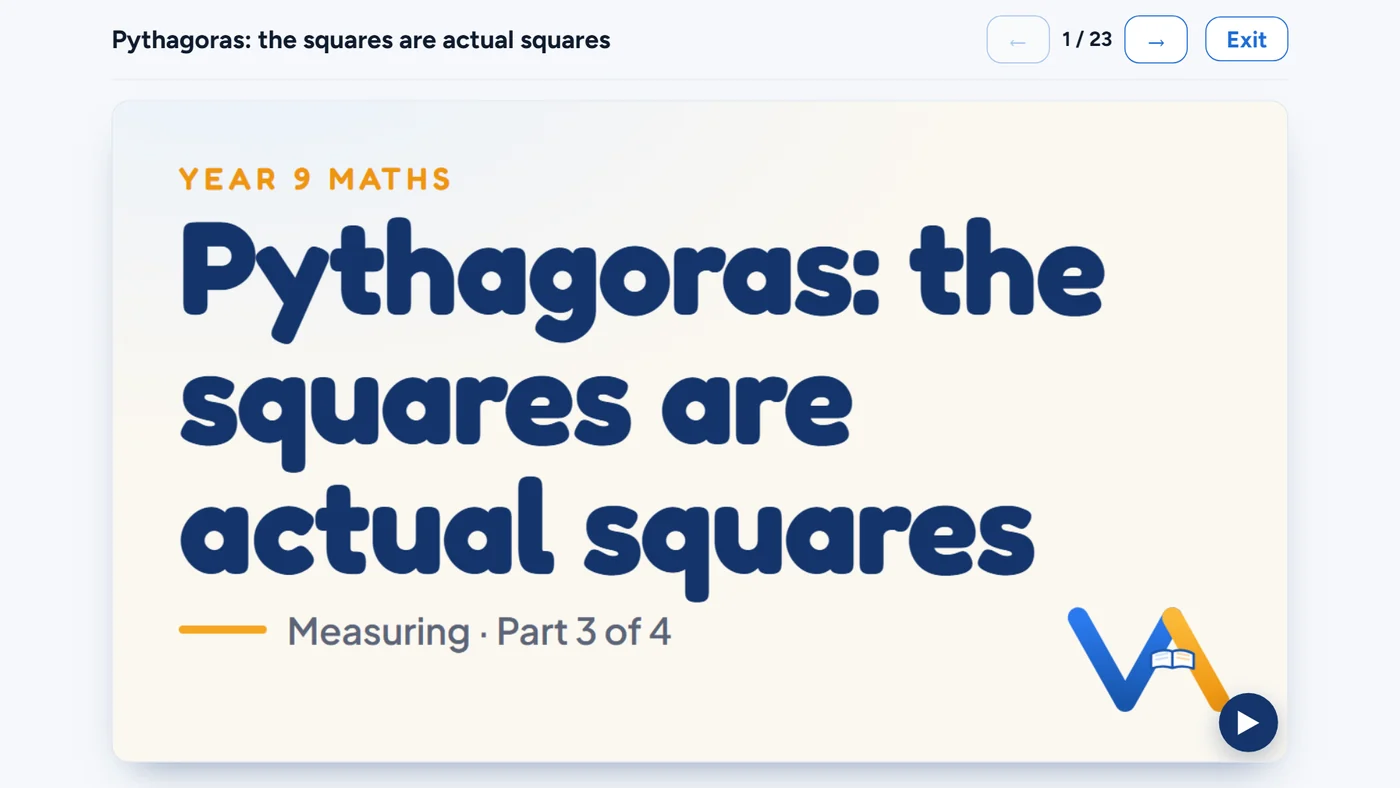
- Press Use in class (the screen icon). The lesson goes full screen, one section at a time, sized for a projector.
- Move with the arrow keys or the arrows at the top. The tools in the lesson still work.
- Press Esc or Exit to leave.
Set it as a task
- Signed in as a teacher, press Set as task under the title. Your class opens with the lesson already in a new task.
Then post it to Classroom: set a task in Google Classroom.