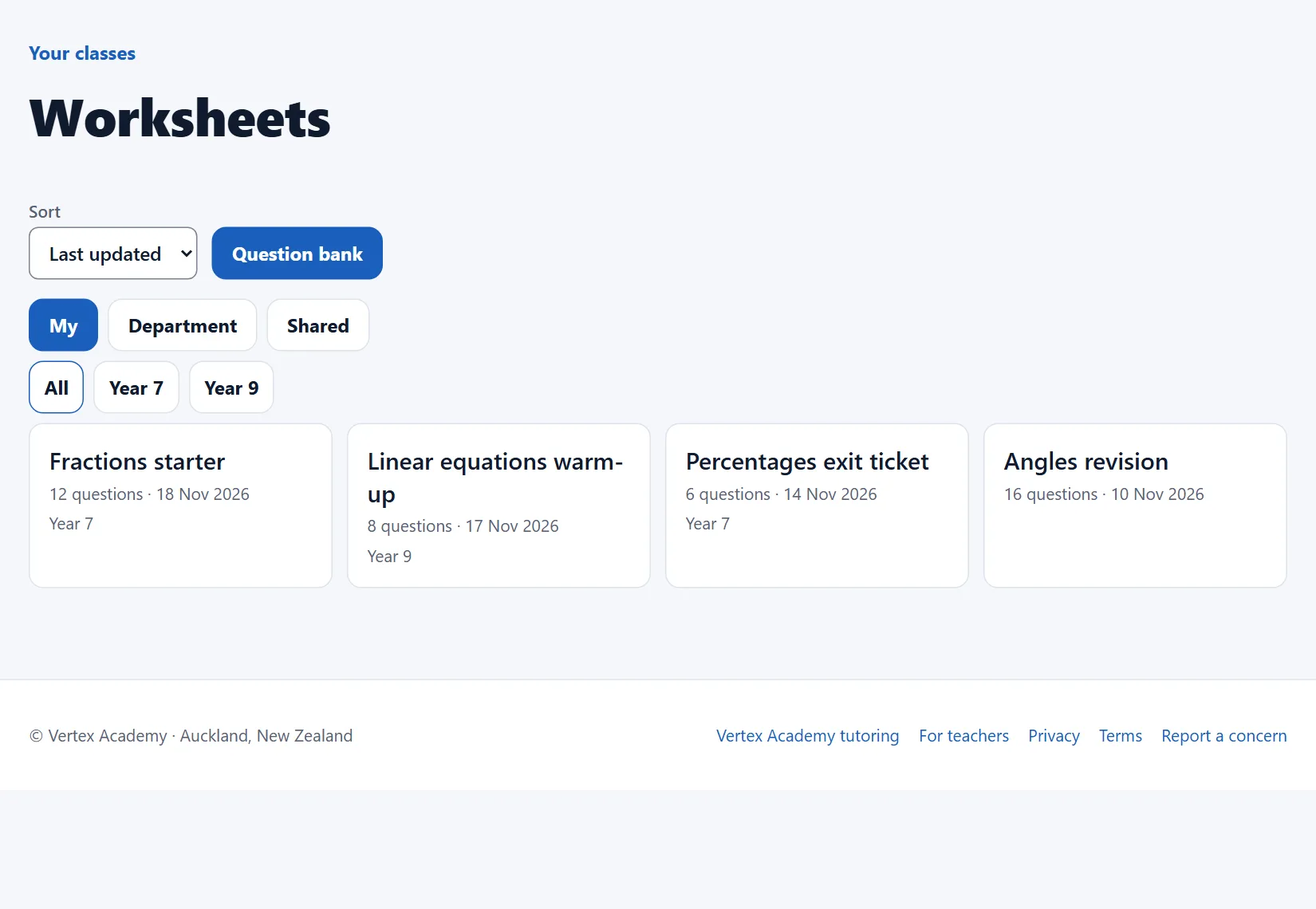
Make it
- Tick skills and lessons, open Selection and press Make worksheet.
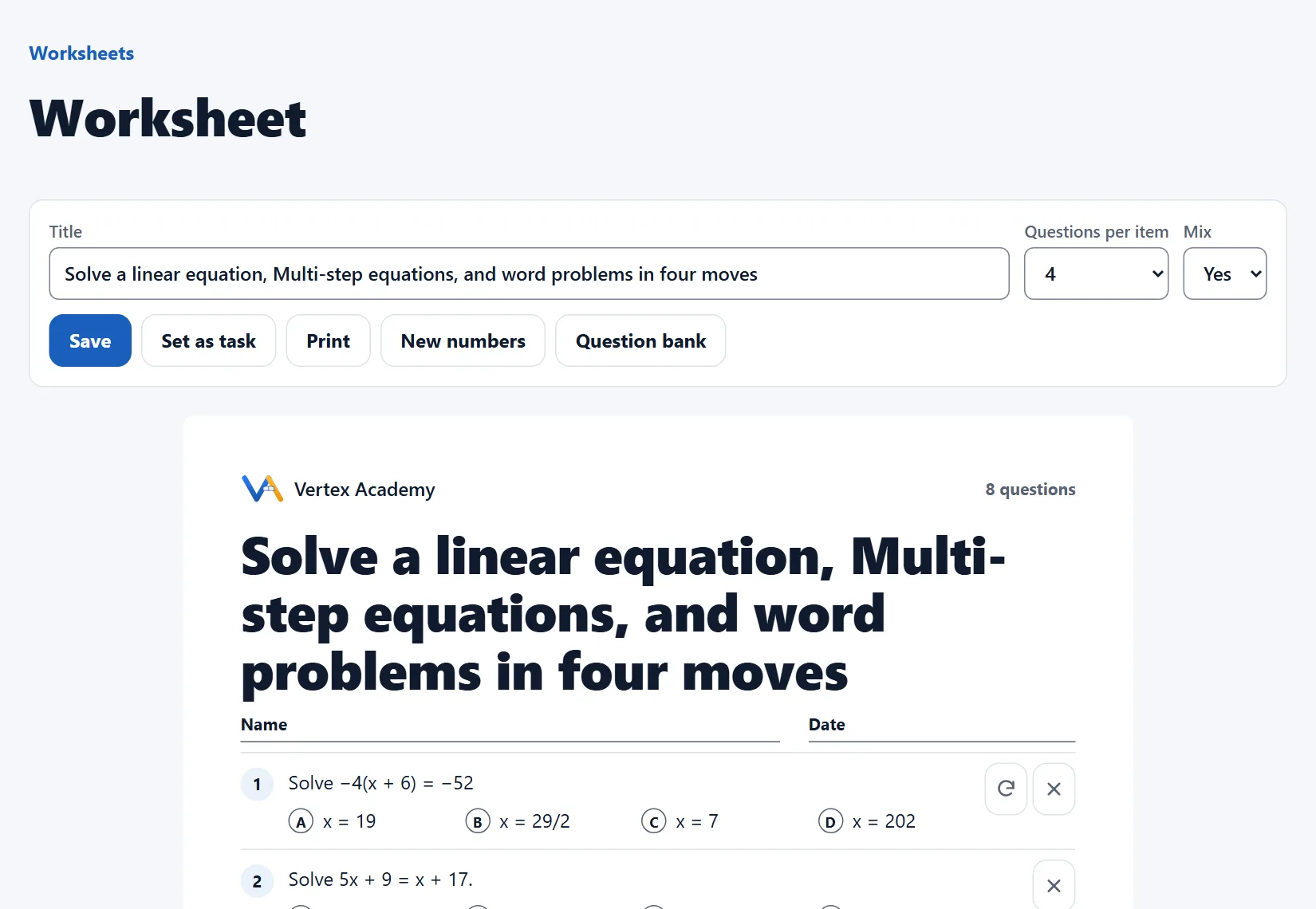
- Choose Questions per item, and Mix to interleave them.
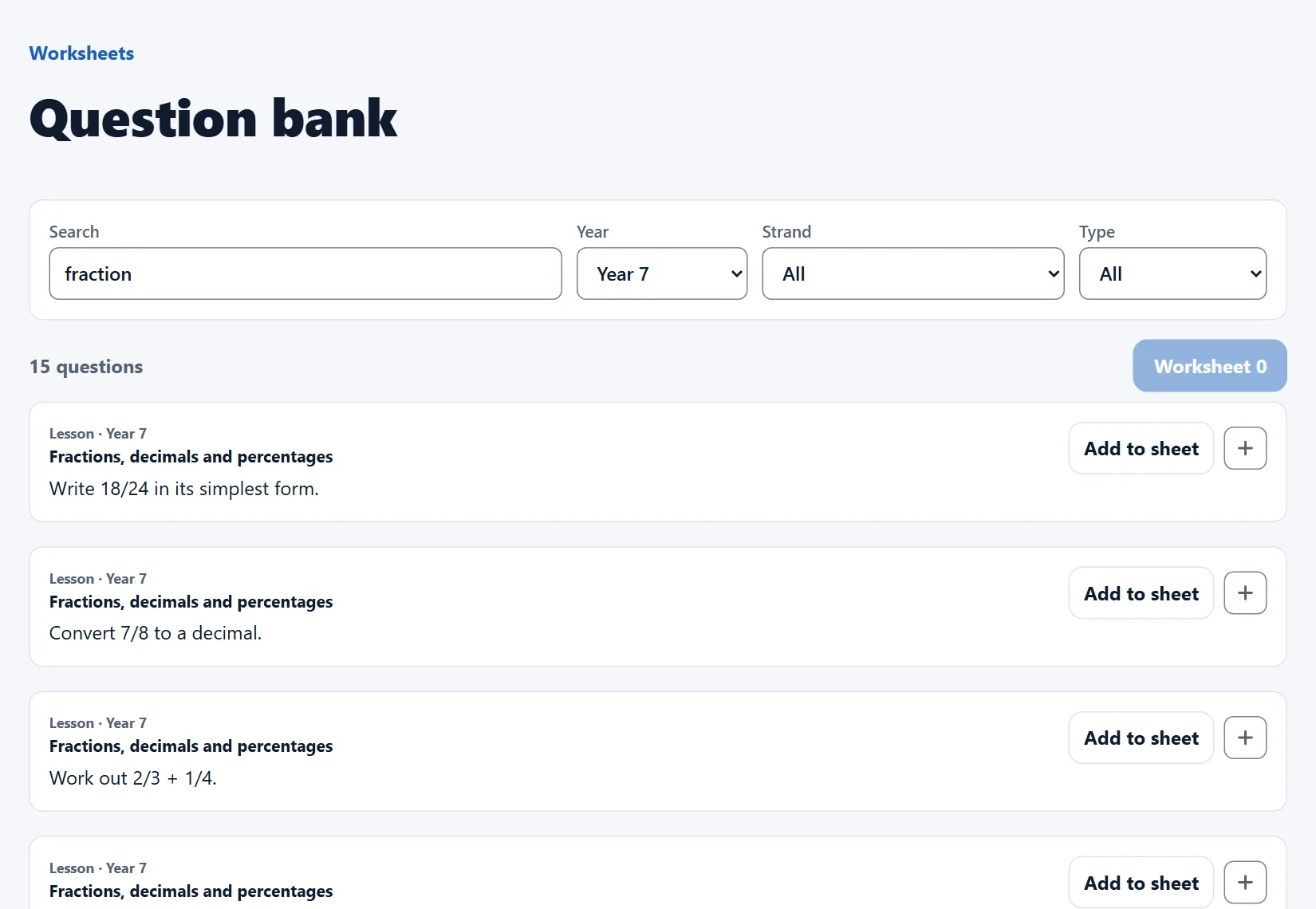
Or pick questions one by one
- Question bank searches every lesson question, skill and practice-paper part by words, year, strand and type.
- Add to sheet puts a question on your worksheet; Worksheet opens it.
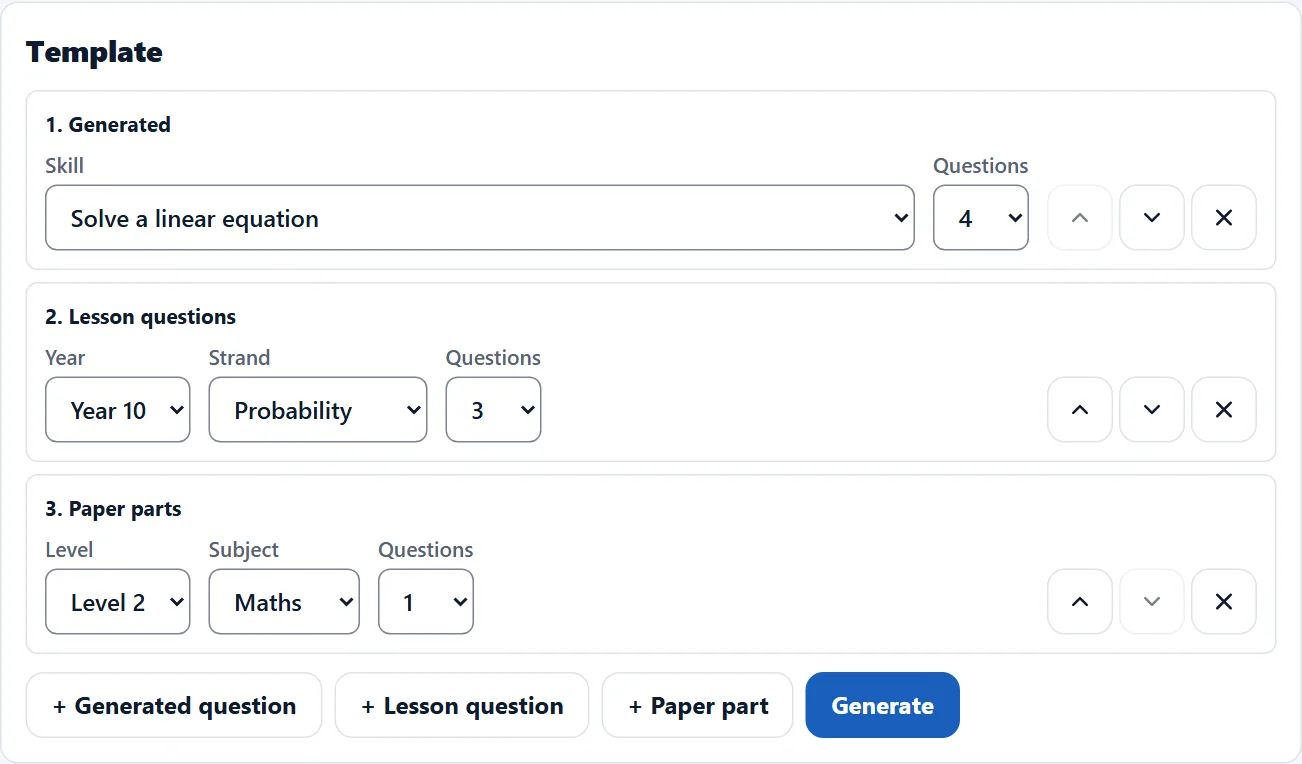
Build it from a template
- + New in Worksheets opens a blank sheet in Edit. A saved sheet opens in View; Edit shows its template.
- + Generated question, + Lesson question or + Paper part adds a slot: a skill, a year and strand, or a level and subject.
- Generate fills the sheet from the slots. Save keeps the template with the sheet.
Change the questions
- The arrow beside a question gives it new numbers, or another question from its slot. The cross removes it.
- New numbers changes every skill question and draws every template slot again: the same sheet, different questions.
- Paper parts print with lines to write on, and our answer on the answers page.
Print, save or set it
- Print gives the sheet, then a page of answers.
- Save keeps it in Worksheets, under My.
- Set as task gives every student in the class exactly these questions.
File and share it
- Move puts a sheet in a sub-folder of My, in Department for the teachers at your school, or in Shared, which your school's students can open too.
- Save a copy makes your own copy of any sheet you can open.