How to pick skills and lessons and set them as a task
Tick what you want
- Signed in as a teacher, press + on a skill at vertexacademy.co.nz/skills, or Select under a lesson's or a practice paper's title.
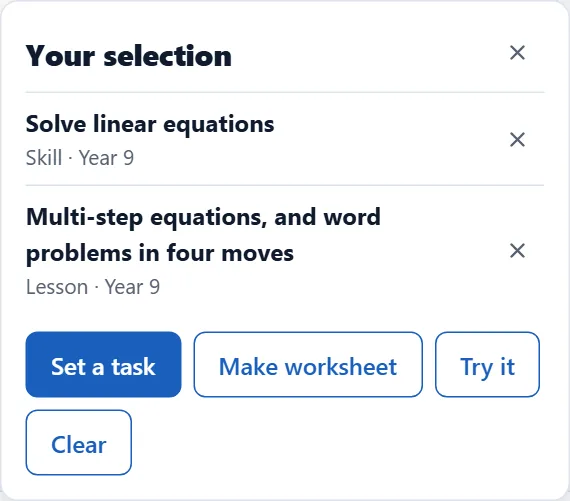
- Selection, at the bottom right, counts what you have ticked. Press it to see the list.
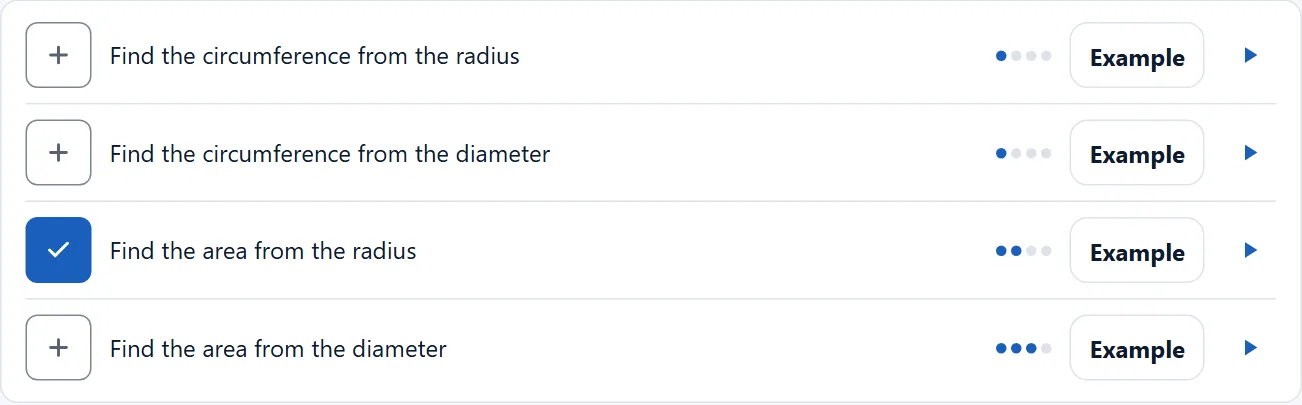
- On a skill's page, tick one sub-skill instead of the whole skill. Dots show its difficulty, from one to four; Example shows one question; the arrow opens the lesson video.
Set it as a task
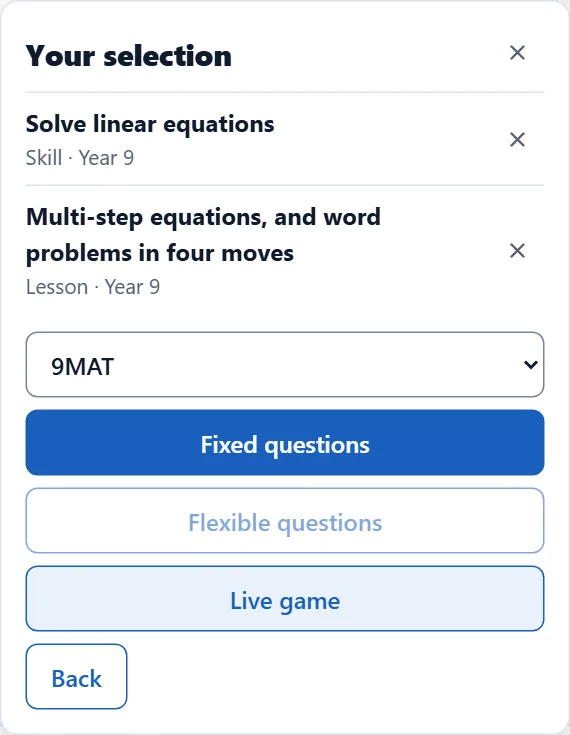
- Press Set a task and pick the class.
- Fixed questions: everyone gets the same questions.
- Flexible questions: each student gets their own numbers. Skills only.
- Live game: the first four go into a live quiz.
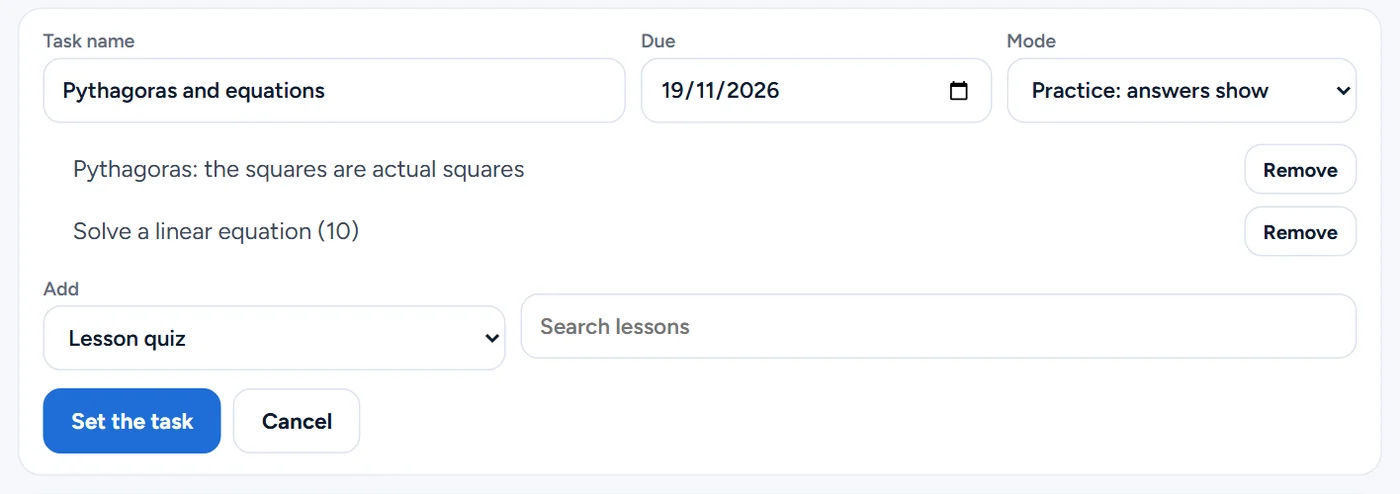
- The task form opens with your selection in it. Choose the due day, Practice or Test, and Classwork or Homework, then press Set the task.
Try it first
- Press Try it to answer a few questions from the selection yourself. Nothing is saved.